

2120 words
11 minutes
Python Tkinter - Complete GUI Guide
🖼️ Python Tkinter - Complete GUI Guide
📚 Table of Contents
- Introduction to Tkinter
- Your First Window
- Labels
- Buttons
- Entry (Text Input)
- Text Widget
- Frames
- Layout Managers
- Checkbuttons
- Radiobuttons
- Listbox
- Combobox (Dropdown)
- Spinbox
- Scale (Slider)
- Menu Bar
- Message Boxes
- File Dialogs
- Canvas
- Images
- Styling with ttk
- Events and Binding
- Practical Projects
1. Introduction to Tkinter
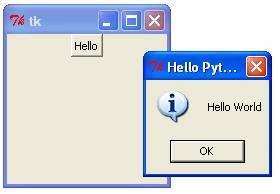
Tkinter is Python’s built-in library for creating graphical user interfaces (GUI).
Why Tkinter?
- ✅ Comes with Python (no install needed)
- ✅ Simple and easy to learn
- ✅ Cross-platform (Windows, Mac, Linux)
- ✅ Good for small to medium apps
Import Tkinter
import tkinter as tkfrom tkinter import ttk # Modern themed widgetsfrom tkinter import messagebox # Pop-up dialogs2. Your First Window
Basic Window
import tkinter as tk
# Create main windowroot = tk.Tk()
# Set window titleroot.title("My First App")
# Set window sizeroot.geometry("400x300") # width x height
# Start the applicationroot.mainloop()Window Options
import tkinter as tk
root = tk.Tk()
# Titleroot.title("My App")
# Sizeroot.geometry("500x400")
# Minimum sizeroot.minsize(300, 200)
# Maximum sizeroot.maxsize(800, 600)
# Make non-resizableroot.resizable(False, False) # (width, height)
# Background colorroot.configure(bg="lightblue")
# Icon (Windows)# root.iconbitmap("icon.ico")
# Center window on screenroot.eval('tk::PlaceWindow . center')
root.mainloop()3. Labels
Labels display text or images.
Basic Label
import tkinter as tk
root = tk.Tk()root.title("Labels")root.geometry("300x200")
# Simple labellabel = tk.Label(root, text="Hello, World!")label.pack()
root.mainloop()Styled Label
import tkinter as tk
root = tk.Tk()root.geometry("400x300")
label = tk.Label( root, text="Styled Label", font=("Arial", 24, "bold"), # Font family, size, style fg="white", # Text color (foreground) bg="darkblue", # Background color width=20, # Width in characters height=2, # Height in lines padx=10, # Horizontal padding pady=10, # Vertical padding relief="raised", # Border style borderwidth=3 # Border width)label.pack(pady=20)
# Relief options: flat, raised, sunken, ridge, groove, solid
root.mainloop()Update Label Text
import tkinter as tk
root = tk.Tk()root.geometry("300x150")
# Using StringVartext_var = tk.StringVar()text_var.set("Initial Text")
label = tk.Label(root, textvariable=text_var, font=("Arial", 16))label.pack(pady=20)
def change_text(): text_var.set("Text Changed!")
button = tk.Button(root, text="Change", command=change_text)button.pack()
root.mainloop()4. Buttons
Basic Button
import tkinter as tk
root = tk.Tk()root.geometry("300x200")
def on_click(): print("Button clicked!")
button = tk.Button(root, text="Click Me!", command=on_click)button.pack(pady=50)
root.mainloop()Styled Button
import tkinter as tk
root = tk.Tk()root.geometry("400x300")
button = tk.Button( root, text="Styled Button", font=("Arial", 14), fg="white", bg="green", activeforeground="green", # Text color when pressed activebackground="white", # Background when pressed width=15, height=2, relief="raised", borderwidth=3, cursor="hand2" # Cursor style)button.pack(pady=50)
root.mainloop()Button with Lambda
import tkinter as tk
root = tk.Tk()root.geometry("300x200")
label = tk.Label(root, text="0", font=("Arial", 24))label.pack(pady=20)
# Pass arguments using lambdadef update_label(value): label.config(text=str(value))
tk.Button(root, text="Set to 1", command=lambda: update_label(1)).pack()tk.Button(root, text="Set to 2", command=lambda: update_label(2)).pack()tk.Button(root, text="Set to 3", command=lambda: update_label(3)).pack()
root.mainloop()5. Entry (Text Input)
Basic Entry
import tkinter as tk
root = tk.Tk()root.geometry("300x200")
# Create entryentry = tk.Entry(root, font=("Arial", 14), width=20)entry.pack(pady=20)
def get_text(): text = entry.get() print(f"You entered: {text}")
button = tk.Button(root, text="Submit", command=get_text)button.pack()
root.mainloop()Entry Options
import tkinter as tk
root = tk.Tk()root.geometry("400x300")
# Normal entryentry1 = tk.Entry(root, width=30)entry1.insert(0, "Default text") # Insert default textentry1.pack(pady=10)
# Password entryentry2 = tk.Entry(root, show="*", width=30)entry2.pack(pady=10)
# Read-only entryentry3 = tk.Entry(root, width=30, state="readonly")entry3.pack(pady=10)
# Styled entryentry4 = tk.Entry( root, font=("Arial", 12), fg="blue", bg="lightyellow", width=30, borderwidth=3, relief="sunken")entry4.pack(pady=10)
# Get and cleardef clear_entries(): entry1.delete(0, tk.END) # Clear entry entry4.delete(0, tk.END)
tk.Button(root, text="Clear", command=clear_entries).pack(pady=10)
root.mainloop()Login Form Example
import tkinter as tk
root = tk.Tk()root.title("Login")root.geometry("300x200")
# Usernametk.Label(root, text="Username:").pack(pady=5)username_entry = tk.Entry(root, width=25)username_entry.pack()
# Passwordtk.Label(root, text="Password:").pack(pady=5)password_entry = tk.Entry(root, show="*", width=25)password_entry.pack()
def login(): username = username_entry.get() password = password_entry.get() print(f"Username: {username}") print(f"Password: {password}")
tk.Button(root, text="Login", command=login, width=10).pack(pady=20)
root.mainloop()6. Text Widget
For multi-line text input.
import tkinter as tk
root = tk.Tk()root.geometry("500x400")
# Create text widgettext = tk.Text( root, width=50, height=10, font=("Arial", 12), wrap=tk.WORD # Wrap at word boundaries)text.pack(pady=20)
# Insert texttext.insert(tk.END, "Type here...\n")text.insert(tk.END, "Line 2\n")
def get_content(): content = text.get("1.0", tk.END) # From line 1, char 0 to end print(content)
def clear_content(): text.delete("1.0", tk.END)
tk.Button(root, text="Get Text", command=get_content).pack(side=tk.LEFT, padx=10)tk.Button(root, text="Clear", command=clear_content).pack(side=tk.LEFT)
root.mainloop()Text with Scrollbar
import tkinter as tk
root = tk.Tk()root.geometry("400x300")
# Frame for text and scrollbarframe = tk.Frame(root)frame.pack(pady=20, fill=tk.BOTH, expand=True)
# Scrollbarscrollbar = tk.Scrollbar(frame)scrollbar.pack(side=tk.RIGHT, fill=tk.Y)
# Text widgettext = tk.Text(frame, yscrollcommand=scrollbar.set, wrap=tk.WORD)text.pack(side=tk.LEFT, fill=tk.BOTH, expand=True)
# Connect scrollbar to textscrollbar.config(command=text.yview)
# Add sample textfor i in range(50): text.insert(tk.END, f"Line {i+1}: This is sample text.\n")
root.mainloop()7. Frames
Frames are containers to organize widgets.
import tkinter as tk
root = tk.Tk()root.geometry("400x300")
# Frame 1 (Top)frame1 = tk.Frame(root, bg="red", width=400, height=100)frame1.pack(fill=tk.X)
tk.Label(frame1, text="Frame 1", bg="red", fg="white").pack()
# Frame 2 (Middle)frame2 = tk.Frame(root, bg="green", width=400, height=100)frame2.pack(fill=tk.X)
tk.Label(frame2, text="Frame 2", bg="green", fg="white").pack()
# Frame 3 (Bottom)frame3 = tk.Frame(root, bg="blue", width=400, height=100)frame3.pack(fill=tk.X)
tk.Label(frame3, text="Frame 3", bg="blue", fg="white").pack()
root.mainloop()LabelFrame (Grouped Frame)
import tkinter as tk
root = tk.Tk()root.geometry("300x250")
# LabelFrame with border and titleframe = tk.LabelFrame(root, text="User Info", padx=20, pady=20)frame.pack(padx=20, pady=20)
tk.Label(frame, text="Name:").grid(row=0, column=0)tk.Entry(frame).grid(row=0, column=1)
tk.Label(frame, text="Email:").grid(row=1, column=0)tk.Entry(frame).grid(row=1, column=1)
tk.Label(frame, text="Phone:").grid(row=2, column=0)tk.Entry(frame).grid(row=2, column=1)
root.mainloop()8. Layout Managers
Pack - Simple Stacking
import tkinter as tk
root = tk.Tk()root.geometry("300x200")
# Stack vertically (default)tk.Button(root, text="Button 1").pack()tk.Button(root, text="Button 2").pack()tk.Button(root, text="Button 3").pack()
# Pack optionstk.Button(root, text="Left").pack(side=tk.LEFT)tk.Button(root, text="Right").pack(side=tk.RIGHT)tk.Button(root, text="Fill X").pack(fill=tk.X)tk.Button(root, text="Expand").pack(expand=True)tk.Button(root, text="Padding").pack(padx=20, pady=10)
root.mainloop()Grid - Table Layout
import tkinter as tk
root = tk.Tk()root.title("Grid Layout")
# Create gridtk.Label(root, text="Username:").grid(row=0, column=0, padx=10, pady=10)tk.Entry(root).grid(row=0, column=1, padx=10, pady=10)
tk.Label(root, text="Password:").grid(row=1, column=0, padx=10, pady=10)tk.Entry(root, show="*").grid(row=1, column=1, padx=10, pady=10)
# Span multiple columnstk.Button(root, text="Login", width=20).grid(row=2, column=0, columnspan=2, pady=20)
root.mainloop()Place - Absolute Position
import tkinter as tk
root = tk.Tk()root.geometry("400x300")
# Absolute positioningtk.Button(root, text="Button 1").place(x=50, y=50)tk.Button(root, text="Button 2").place(x=150, y=100)tk.Button(root, text="Button 3").place(x=250, y=150)
# Relative positioning (0.0 to 1.0)tk.Button(root, text="Center").place(relx=0.5, rely=0.5, anchor=tk.CENTER)
root.mainloop()9. Checkbuttons
import tkinter as tk
root = tk.Tk()root.geometry("300x200")
# Variables to store statesvar1 = tk.IntVar() # 0 or 1var2 = tk.IntVar()var3 = tk.IntVar()
# Create checkbuttonscb1 = tk.Checkbutton(root, text="Python", variable=var1)cb2 = tk.Checkbutton(root, text="Java", variable=var2)cb3 = tk.Checkbutton(root, text="JavaScript", variable=var3)
cb1.pack(anchor=tk.W)cb2.pack(anchor=tk.W)cb3.pack(anchor=tk.W)
def show_selection(): selected = [] if var1.get(): selected.append("Python") if var2.get(): selected.append("Java") if var3.get(): selected.append("JavaScript") print(f"Selected: {selected}")
tk.Button(root, text="Show Selection", command=show_selection).pack(pady=20)
root.mainloop()10. Radiobuttons
import tkinter as tk
root = tk.Tk()root.geometry("300x200")
# Variable to store selectionselected = tk.StringVar()selected.set("python") # Default selection
# Create radiobuttonstk.Radiobutton(root, text="Python", variable=selected, value="python").pack(anchor=tk.W)tk.Radiobutton(root, text="Java", variable=selected, value="java").pack(anchor=tk.W)tk.Radiobutton(root, text="C++", variable=selected, value="cpp").pack(anchor=tk.W)
def show_selection(): print(f"Selected: {selected.get()}")
tk.Button(root, text="Show Selection", command=show_selection).pack(pady=20)
root.mainloop()11. Listbox
import tkinter as tk
root = tk.Tk()root.geometry("300x300")
# Create listboxlistbox = tk.Listbox( root, width=30, height=10, selectmode=tk.SINGLE # SINGLE, MULTIPLE, EXTENDED)listbox.pack(pady=20)
# Add itemsitems = ["Python", "Java", "JavaScript", "C++", "Ruby", "Go", "Rust"]for item in items: listbox.insert(tk.END, item)
def get_selection(): selection = listbox.curselection() if selection: index = selection[0] value = listbox.get(index) print(f"Selected: {value}")
def delete_selected(): selection = listbox.curselection() if selection: listbox.delete(selection)
tk.Button(root, text="Get Selection", command=get_selection).pack()tk.Button(root, text="Delete Selected", command=delete_selected).pack()
root.mainloop()12. Combobox (Dropdown)
import tkinter as tkfrom tkinter import ttk
root = tk.Tk()root.geometry("300x200")
# Create comboboxcombo = ttk.Combobox( root, values=["Python", "Java", "JavaScript", "C++"], state="readonly", # Prevent typing width=25)combo.pack(pady=20)combo.set("Select a language") # Default text
def on_select(event): print(f"Selected: {combo.get()}")
combo.bind("<<ComboboxSelected>>", on_select)
root.mainloop()13. Spinbox
import tkinter as tk
root = tk.Tk()root.geometry("300x150")
# Numeric spinboxspin1 = tk.Spinbox(root, from_=0, to=100, width=10)spin1.pack(pady=10)
# Spinbox with valuesspin2 = tk.Spinbox(root, values=("Small", "Medium", "Large"), width=10)spin2.pack(pady=10)
def get_values(): print(f"Number: {spin1.get()}") print(f"Size: {spin2.get()}")
tk.Button(root, text="Get Values", command=get_values).pack(pady=10)
root.mainloop()14. Scale (Slider)
import tkinter as tk
root = tk.Tk()root.geometry("400x200")
# Horizontal scalescale_h = tk.Scale( root, from_=0, to=100, orient=tk.HORIZONTAL, length=300, label="Volume")scale_h.pack(pady=20)
# Vertical scalescale_v = tk.Scale( root, from_=0, to=100, orient=tk.VERTICAL, length=150)scale_v.pack()
def get_value(): print(f"Horizontal: {scale_h.get()}") print(f"Vertical: {scale_v.get()}")
tk.Button(root, text="Get Value", command=get_value).pack(pady=10)
root.mainloop()15. Menu Bar
import tkinter as tkfrom tkinter import messagebox
root = tk.Tk()root.title("Menu Example")root.geometry("400x300")
# Create menu barmenubar = tk.Menu(root)
# File menufile_menu = tk.Menu(menubar, tearoff=0)file_menu.add_command(label="New", command=lambda: print("New"))file_menu.add_command(label="Open", command=lambda: print("Open"))file_menu.add_command(label="Save", command=lambda: print("Save"))file_menu.add_separator()file_menu.add_command(label="Exit", command=root.quit)menubar.add_cascade(label="File", menu=file_menu)
# Edit menuedit_menu = tk.Menu(menubar, tearoff=0)edit_menu.add_command(label="Cut")edit_menu.add_command(label="Copy")edit_menu.add_command(label="Paste")menubar.add_cascade(label="Edit", menu=edit_menu)
# Help menuhelp_menu = tk.Menu(menubar, tearoff=0)help_menu.add_command(label="About", command=lambda: messagebox.showinfo("About", "My App v1.0"))menubar.add_cascade(label="Help", menu=help_menu)
# Attach menu to windowroot.config(menu=menubar)
root.mainloop()16. Message Boxes
import tkinter as tkfrom tkinter import messagebox
root = tk.Tk()root.geometry("400x300")
def show_info(): messagebox.showinfo("Info", "This is information!")
def show_warning(): messagebox.showwarning("Warning", "This is a warning!")
def show_error(): messagebox.showerror("Error", "This is an error!")
def ask_question(): result = messagebox.askquestion("Question", "Do you like Python?") print(f"Answer: {result}") # 'yes' or 'no'
def ask_okcancel(): result = messagebox.askokcancel("Confirm", "Proceed?") print(f"Result: {result}") # True or False
def ask_yesno(): result = messagebox.askyesno("Confirm", "Save changes?") print(f"Result: {result}") # True or False
def ask_yesnocancel(): result = messagebox.askyesnocancel("Save", "Save before closing?") print(f"Result: {result}") # True, False, or None
tk.Button(root, text="Info", command=show_info).pack(pady=5)tk.Button(root, text="Warning", command=show_warning).pack(pady=5)tk.Button(root, text="Error", command=show_error).pack(pady=5)tk.Button(root, text="Question", command=ask_question).pack(pady=5)tk.Button(root, text="OK/Cancel", command=ask_okcancel).pack(pady=5)tk.Button(root, text="Yes/No", command=ask_yesno).pack(pady=5)
root.mainloop()17. File Dialogs
import tkinter as tkfrom tkinter import filedialog
root = tk.Tk()root.geometry("400x200")
def open_file(): filepath = filedialog.askopenfilename( title="Open File", filetypes=[ ("Text files", "*.txt"), ("Python files", "*.py"), ("All files", "*.*") ] ) if filepath: print(f"Selected: {filepath}") with open(filepath, 'r') as f: content = f.read() print(content)
def save_file(): filepath = filedialog.asksaveasfilename( title="Save File", defaultextension=".txt", filetypes=[("Text files", "*.txt"), ("All files", "*.*")] ) if filepath: print(f"Save to: {filepath}")
def select_folder(): folder = filedialog.askdirectory(title="Select Folder") if folder: print(f"Selected folder: {folder}")
tk.Button(root, text="Open File", command=open_file).pack(pady=10)tk.Button(root, text="Save File", command=save_file).pack(pady=10)tk.Button(root, text="Select Folder", command=select_folder).pack(pady=10)
root.mainloop()18. Canvas
For drawing shapes and graphics.
import tkinter as tk
root = tk.Tk()root.title("Canvas")root.geometry("500x400")
canvas = tk.Canvas(root, width=450, height=350, bg="white")canvas.pack(pady=20)
# Rectanglecanvas.create_rectangle(50, 50, 150, 100, fill="red", outline="black")
# Oval/Circlecanvas.create_oval(200, 50, 300, 150, fill="blue")
# Linecanvas.create_line(50, 200, 200, 200, width=3, fill="green")
# Polygoncanvas.create_polygon(300, 200, 350, 250, 250, 250, fill="yellow", outline="black")
# Textcanvas.create_text(250, 300, text="Hello Canvas!", font=("Arial", 16), fill="purple")
# Arccanvas.create_arc(350, 50, 450, 150, start=0, extent=180, fill="orange")
root.mainloop()19. Images
import tkinter as tkfrom PIL import Image, ImageTk # pip install Pillow
root = tk.Tk()root.geometry("400x400")
# Load imageimage = Image.open("image.png")image = image.resize((200, 200)) # Resizephoto = ImageTk.PhotoImage(image)
# Display in labellabel = tk.Label(root, image=photo)label.pack(pady=20)
# Display in buttonbutton = tk.Button(root, image=photo)button.pack()
root.mainloop()20. Styling with ttk
import tkinter as tkfrom tkinter import ttk
root = tk.Tk()root.geometry("400x300")
# Create stylestyle = ttk.Style()
# Configure button stylestyle.configure( "Custom.TButton", font=("Arial", 12), padding=10, background="blue")
# Use styled widgetsttk.Button(root, text="TTK Button", style="Custom.TButton").pack(pady=10)ttk.Entry(root, width=30).pack(pady=10)ttk.Combobox(root, values=["A", "B", "C"]).pack(pady=10)ttk.Progressbar(root, length=200, mode="determinate").pack(pady=10)
root.mainloop()21. Events and Binding
import tkinter as tk
root = tk.Tk()root.geometry("400x300")
label = tk.Label(root, text="Press a key or click", font=("Arial", 14))label.pack(pady=50)
def on_key(event): label.config(text=f"Key pressed: {event.char}")
def on_click(event): label.config(text=f"Clicked at: ({event.x}, {event.y})")
def on_enter(event): event.widget.config(bg="yellow")
def on_leave(event): event.widget.config(bg="SystemButtonFace")
# Bind keyboardroot.bind("<Key>", on_key)root.bind("<Return>", lambda e: label.config(text="Enter pressed!"))
# Bind mouseroot.bind("<Button-1>", on_click) # Left click
# Bind to widgetbutton = tk.Button(root, text="Hover me")button.pack(pady=20)button.bind("<Enter>", on_enter)button.bind("<Leave>", on_leave)
root.mainloop()Common Events
| Event | Description |
|---|---|
<Button-1> | Left click |
<Button-2> | Middle click |
<Button-3> | Right click |
<Key> | Any key press |
<Return> | Enter key |
<Escape> | Escape key |
<Enter> | Mouse enters widget |
<Leave> | Mouse leaves widget |
<Motion> | Mouse movement |
22. Practical Projects
Project 1: Calculator
import tkinter as tk
root = tk.Tk()root.title("Calculator")root.geometry("300x400")
# Displaydisplay = tk.Entry(root, font=("Arial", 20), justify=tk.RIGHT)display.grid(row=0, column=0, columnspan=4, sticky="nsew", padx=5, pady=5)
# Button click handlerdef click(char): if char == "C": display.delete(0, tk.END) elif char == "=": try: result = eval(display.get()) display.delete(0, tk.END) display.insert(0, str(result)) except: display.delete(0, tk.END) display.insert(0, "Error") else: display.insert(tk.END, char)
# Buttonsbuttons = [ "7", "8", "9", "/", "4", "5", "6", "*", "1", "2", "3", "-", "C", "0", "=", "+"]
row = 1col = 0for btn in buttons: tk.Button( root, text=btn, font=("Arial", 16), width=5, height=2, command=lambda b=btn: click(b) ).grid(row=row, column=col, padx=2, pady=2) col += 1 if col > 3: col = 0 row += 1
root.mainloop()Project 2: To-Do List
import tkinter as tkfrom tkinter import messagebox
root = tk.Tk()root.title("To-Do List")root.geometry("400x500")
# Entry for new taskentry = tk.Entry(root, font=("Arial", 14), width=30)entry.pack(pady=20)
# Listbox for taskslistbox = tk.Listbox(root, font=("Arial", 12), width=35, height=15)listbox.pack(pady=10)
def add_task(): task = entry.get() if task: listbox.insert(tk.END, task) entry.delete(0, tk.END)
def delete_task(): selection = listbox.curselection() if selection: listbox.delete(selection)
def clear_all(): if messagebox.askyesno("Confirm", "Clear all tasks?"): listbox.delete(0, tk.END)
# Buttonsbtn_frame = tk.Frame(root)btn_frame.pack(pady=10)
tk.Button(btn_frame, text="Add Task", command=add_task, width=10).pack(side=tk.LEFT, padx=5)tk.Button(btn_frame, text="Delete", command=delete_task, width=10).pack(side=tk.LEFT, padx=5)tk.Button(btn_frame, text="Clear All", command=clear_all, width=10).pack(side=tk.LEFT, padx=5)
root.mainloop()Project 3: Text Editor
import tkinter as tkfrom tkinter import filedialog, messagebox
root = tk.Tk()root.title("Text Editor")root.geometry("600x500")
# Text areatext = tk.Text(root, font=("Consolas", 12), wrap=tk.WORD)text.pack(expand=True, fill=tk.BOTH, padx=5, pady=5)
current_file = None
def new_file(): global current_file text.delete("1.0", tk.END) current_file = None root.title("Text Editor - New")
def open_file(): global current_file filepath = filedialog.askopenfilename(filetypes=[("Text files", "*.txt"), ("All files", "*.*")]) if filepath: with open(filepath, "r") as f: text.delete("1.0", tk.END) text.insert("1.0", f.read()) current_file = filepath root.title(f"Text Editor - {filepath}")
def save_file(): global current_file if current_file: with open(current_file, "w") as f: f.write(text.get("1.0", tk.END)) else: save_as()
def save_as(): global current_file filepath = filedialog.asksaveasfilename(defaultextension=".txt", filetypes=[("Text files", "*.txt")]) if filepath: with open(filepath, "w") as f: f.write(text.get("1.0", tk.END)) current_file = filepath root.title(f"Text Editor - {filepath}")
# Menumenubar = tk.Menu(root)file_menu = tk.Menu(menubar, tearoff=0)file_menu.add_command(label="New", command=new_file)file_menu.add_command(label="Open", command=open_file)file_menu.add_command(label="Save", command=save_file)file_menu.add_command(label="Save As", command=save_as)file_menu.add_separator()file_menu.add_command(label="Exit", command=root.quit)menubar.add_cascade(label="File", menu=file_menu)root.config(menu=menubar)
root.mainloop()🎯 Quick Reference
| Widget | Purpose |
|---|---|
Label | Display text/image |
Button | Clickable button |
Entry | Single-line input |
Text | Multi-line input |
Frame | Container |
Listbox | List of items |
Checkbutton | Checkbox |
Radiobutton | Radio button |
Scale | Slider |
Canvas | Drawing |
Menu | Menu bar |
Created by cat0x01 🥷🏻